
Before Odin can flash anything, your Samsung phone has to be in Download Mode. It’s a special screen that lets the computer talk to the phone, and without it Odin just says nothing is connected.
In this guide, I will show you how to enter Download Mode on any Galaxy phone or tablet, how to get out of it, and what changed on newer phones running One UI 8.5.
What is Download Mode?
Download Mode, also called Odin Mode, is a pre-boot screen on Samsung Galaxy devices. Samsung phones don’t have Fastboot, so this is the mode you use to flash firmware from a computer.
Here’s what it looks like when you get there.
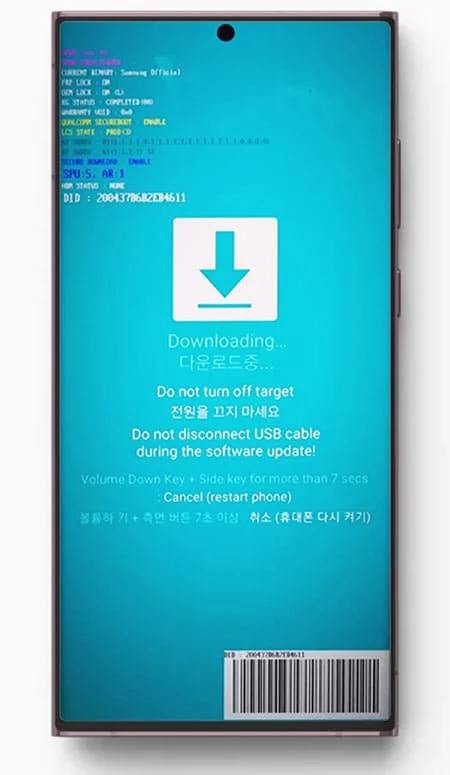
You need it whenever you want to flash stock firmware with Odin, fix a bootloop, or install a patched AP file for rooting. If you only want to update your phone, you don’t need any of this. Go to Settings > Software update > Download and install instead.
The short answer
On most phones from the last few years, turn the phone off, hold Volume Up and Volume Down together, and plug in the USB cable that’s connected to your PC. When the blue Warning screen shows up, press Volume Up.
Older phones with a Home or Bixby button use a slightly different combo. I have all three below.
Running One UI 8.5? Read the section on the D2 error first, or the key combo may not work at all.
Which key combo does your phone use?
Samsung changed the buttons a couple of times, so the right combo depends on what keys your phone has.
Phones with a Side key (Galaxy Note 10 and newer)
This covers the Galaxy S20, S21, S22, S23, S24, S25, Note 20, the Z Fold and Z Flip series, most Galaxy A phones, and tablets like the Tab S7 and Tab A7. These phones only have Volume and Side keys.
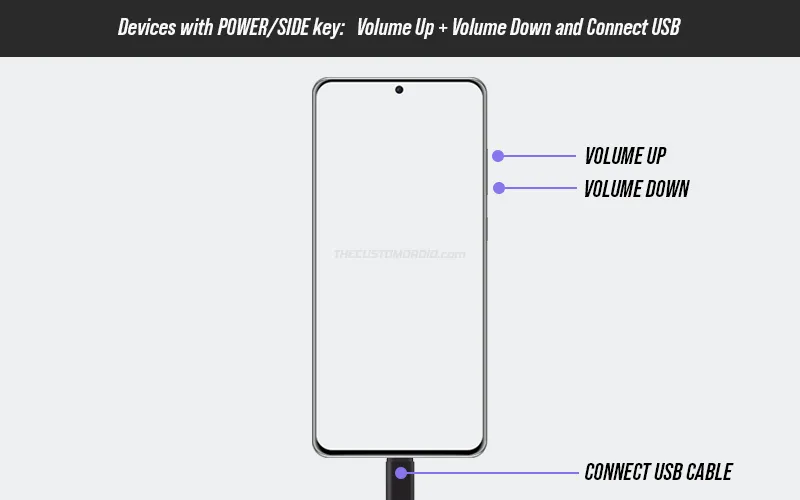
- Power off the phone and wait a few seconds until the screen is fully dark.
- Connect the other end of the USB cable to your PC, but leave the phone end out for now.
- Hold Volume Up and Volume Down together.
- While holding both keys, plug the cable into the phone.
- Let go when the blue Warning screen appears.
- Press Volume Up to continue into Download Mode.
Pressing Volume Down on the Warning screen cancels and restarts the phone.
Phones with a Bixby key (Galaxy S8 to S10, Note 8 and Note 9)
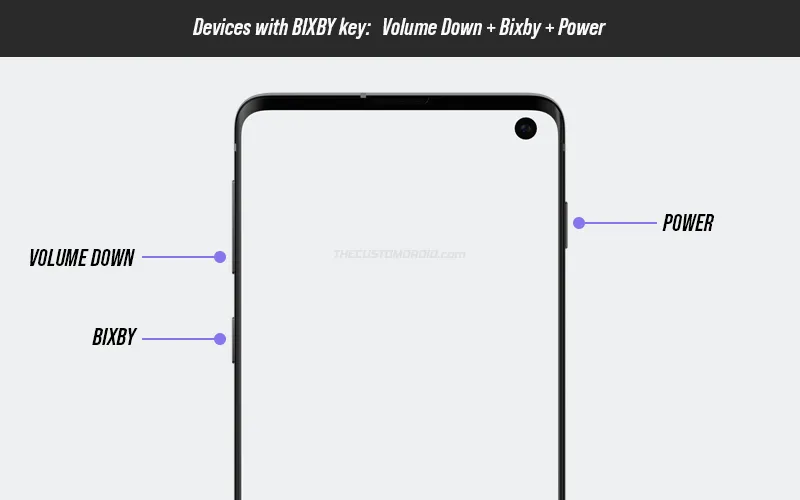
- Power off the phone.
- Hold Volume Down, Bixby and Power together.
- Release the keys when the blue Warning screen appears.
- Press Volume Up to continue.
Phones with a Home button (Galaxy S7 and older)
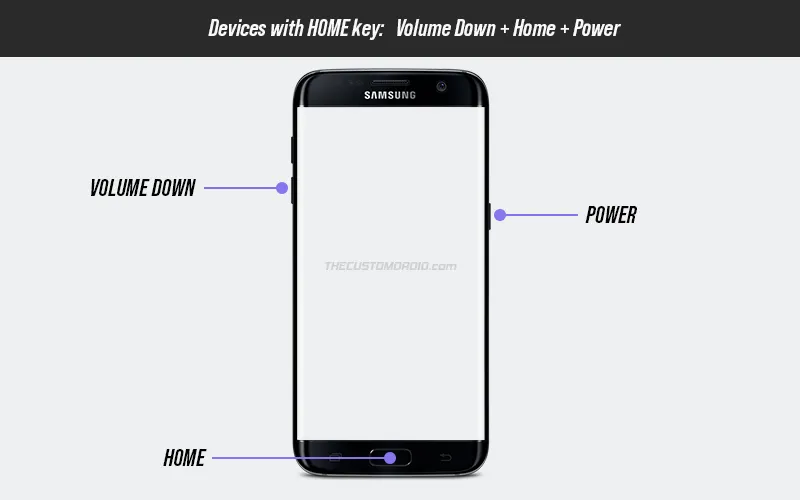
- Power off the phone.
- Hold Volume Down, Home and Power together.
- Release the keys when the blue Warning screen appears.
- Press Volume Up to continue.
Enter Download Mode with an ADB command
If a key is broken or you already have ADB open, you can skip the buttons. This works when the phone is turned on and unlocked.
- Enable USB debugging in Settings > Developer options. If you don’t see Developer options, go to Settings > About phone > Software information and tap Build number seven times.
- Connect the phone to your PC and tap Allow on the debugging prompt.
- Open a command window in your platform-tools folder and run
adb devicesto check that the phone shows up. - Run
adb reboot download
The phone restarts straight into Download Mode. On macOS or Linux, use ./adb instead of adb.
One UI 8.5 and the D2 error
This is the part that trips people up now. On some phones updated to One UI 8.5, the usual key combo doesn’t open Download Mode. You get a blank blue screen with a D2 error instead.
Samsung hasn’t said anything official about it. PiunikaWeb reported it in March 2026 on the Galaxy S26 series, and said it also affects some older phones back to the S24 and the Z Fold 7. Which phones are hit depends on the build, region and security patch.
The fix people found is to turn on Maintenance Mode first. Technastic lists these steps.
- Go to Settings > Battery and device care > Maintenance Mode and turn it on. On some builds the page is under Device care.
- Wait for the phone to restart and finish setting up. Technastic says this takes about two minutes.
- Power the phone off.
- Use the Side key steps above: hold Volume Up and Volume Down, then plug in the cable.
- Flash what you need in Odin.
- Restart the phone and turn Maintenance Mode off again.
The same article says removing your screen lock (Settings > Lock screen and AOD > Screen lock type > None) also works. Turn it back on afterward.
A quick honest note. I haven’t tested this on a One UI 8.5 phone myself, so I’m passing on what those two sites reported. Menu names can differ between builds. If it works or fails on your phone, tell me the model and I’ll update this section.
Also keep in mind that the bootloader still blocks older firmware. If you try to flash a build older than what’s on the phone, Odin will stop with a SW REV CHECK FAIL. My Odin FAIL errors guide explains that one.
How to exit Download Mode
If Odin finishes a flash with the default settings, the phone restarts on its own. That’s it.
If you got there by mistake, or the phone is stuck on the Download Mode screen, hold Volume Down and the Side key (or Power key) together for 7 to 10 seconds. The screen goes black and the phone starts normally. The exit steps are also printed at the bottom of the Download Mode screen.
Still stuck on the Warning screen? Press Volume Down once. It cancels and restarts the phone.
What to do once you’re in
Now the phone is ready for Odin. Here’s where to go next.
- Install the Samsung USB Driver on your PC. Without it, Odin won’t show the blue ID:COM box.
- Download Odin3 v3.14.1, the version I recommend.
- Follow the step-by-step Odin tutorial to flash your firmware.
- Not sure what BL, AP, CP and CSC mean? Read my Samsung firmware files guide.
- On a Mac or Linux PC? See Odin for Mac and Linux.
Samsung Download Mode questions
How do I enter Download Mode on a Samsung phone without a Home button?
Power the phone off, hold Volume Up and Volume Down together, and plug in a USB cable connected to a PC. Release the keys at the blue Warning screen and press Volume Up. If your phone has a Bixby key, use Volume Down, Bixby and Power instead.
Why won’t my Samsung enter Download Mode?
The usual reasons are a cable that only charges, a USB port on a hub, the phone not being fully powered off, or holding the wrong keys for your model. On One UI 8.5 you may also get a D2 error, and turning on Maintenance Mode first is the reported fix.
What does the D2 error mean on a Samsung phone?
It’s a blue screen some One UI 8.5 phones show when you try the normal Download Mode key combo. Samsung hasn’t explained it. Users report that turning on Maintenance Mode, or temporarily removing the screen lock, lets Download Mode open again.
How do I exit Download Mode?
Hold Volume Down and the Side or Power key together for 7 to 10 seconds. The phone restarts into Android. If you’re still on the Warning screen, press Volume Down instead.
Is Download Mode the same as Recovery Mode?
No. Download Mode is where Odin flashes firmware. Recovery Mode is where you wipe data or clear the cache. On a Side key phone, you get Recovery with Volume Up and Side held together.
Does Download Mode delete my data?
No, just opening it doesn’t erase anything. Data is only lost if you flash a full firmware with the CSC file or wipe the phone during the flash. Use HOME_CSC to keep your data.
Can I enter Download Mode from a command line?
Yes. With USB debugging on, run adb reboot download and the phone restarts straight into Download Mode.
That’s all you need to boot any Galaxy phone or tablet into Download Mode and out of it.
If you get stuck, send me a message through the contact page. Tell me your phone’s model number and the One UI version it’s on, and I’ll help you sort it out.