
Odin is the tool you need to flash firmware on a Samsung Galaxy phone or tablet from a Windows PC. On this page, you can download Odin3 v3.14.1 or v3.14.4 (or an older version), check the file against its SHA-256 checksum, and learn how to use it without putting your device at risk.
I have been writing about Samsung flashing for years, first on RootMyGalaxy and later on other Android blogs. So instead of just handing you a download link, I will also show you which version to pick, what goes into each file slot, and how to fix the errors that trip most people up.
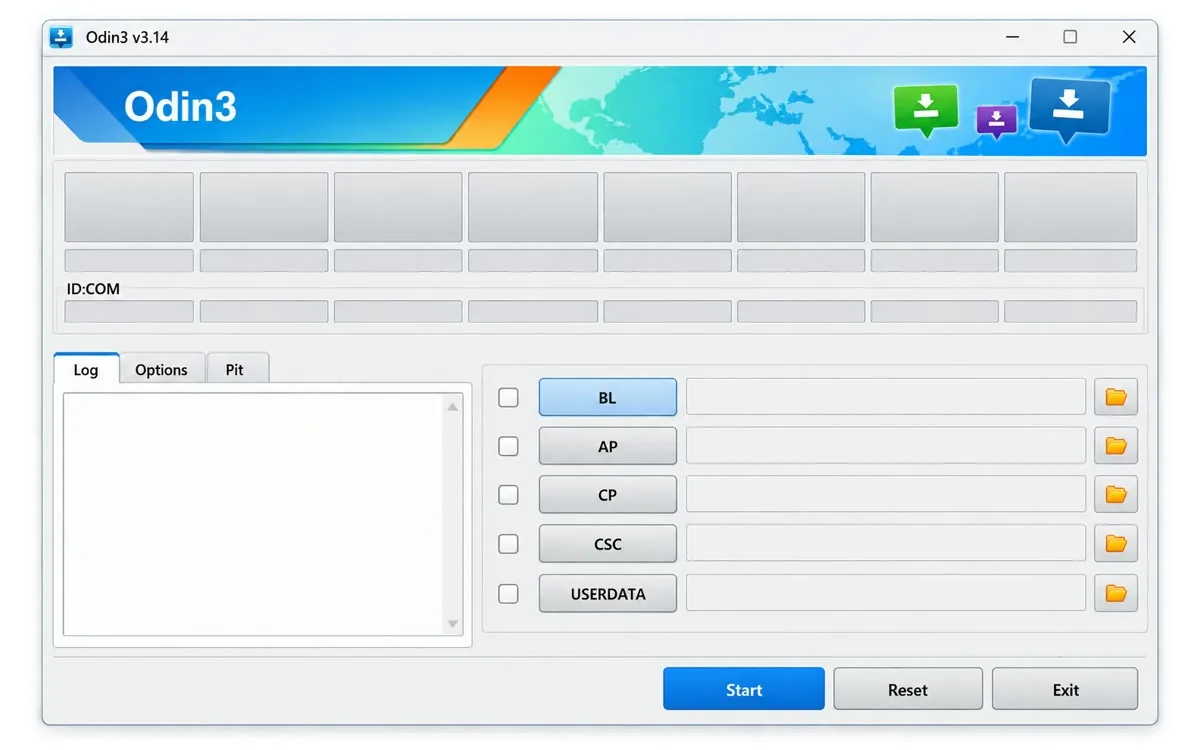
Latest Windows release
Odin3 v3.14.4
Latest
| File name | Odin3-v3.14.4.zip |
|---|---|
| File size | 4.51 MB (4,511,538 bytes) |
| Operating system | Windows 7, 8, 10, and 11 |
| Archive checked | September 29, 2026 |
eda427680fbd16716b8a4856fd450857d1bcc75e379ac90b9165e49d9d652828This Odin ZIP is hosted on getodintool.com. Compare its SHA-256 checksum and scan it before opening. Samsung does not publish a public Odin download page. The history of this build is disputed, so I wrote up what I found inside it. Want the version without the extra DLL? Download Odin3 v3.14.1 instead.
Free
No purchase required
Windows
Portable desktop utility
Galaxy
Samsung firmware only
Direct ZIP
No download timer
What is Odin Flash Tool?
Odin (or Odin3) is Samsung’s own firmware flashing utility for Windows. Samsung uses it internally, at its service centers, and on the factory line. It was never meant for the public, but copies have been floating around for years, and it has been the go-to flashing tool for Galaxy users ever since.
Here is why you need it. Unlike most Android phones, Samsung devices don’t have a Fastboot Mode. You can’t just run a fastboot command and flash an image. Instead, Samsung has its own pre-boot mode called Download Mode, which is also known as Odin Mode. When your phone is in Download Mode and connected to your PC, Odin can talk to it and write firmware files to it.
Odin reads Samsung firmware in the .tar or .tar.md5 format. A full stock firmware package comes split into four or five files, and each of them goes into its own slot in Odin. I will explain the slots further down.
Install stock firmware
Update your phone manually when the OTA hasn’t reached your region yet, or go back to stock after trying a custom ROM.
Fix a phone that won’t boot
A clean flash of the correct firmware can get a phone out of a bootloop or a failed update. It won’t fix damaged hardware, though.
Flash custom binaries
TWRP, Magisk-patched AP files, and other custom images are flashed with Odin too. This needs an unlocked bootloader and trips Knox for good.
Important: Always match the full model number and region. For example, SM-S928B and SM-S928U are both a Galaxy S24 Ultra, but their firmware is not interchangeable. The wrong firmware can wipe your data or leave the phone unable to start.
Which Odin version should you use?
If you are flashing a Galaxy phone or tablet from the last few years, use Odin3 v3.14.4. It has the highest version number and it is the one most guides point to, so it is the one on the download card above.
One thing you should know. I compared v3.14.4 with v3.14.1 and the program code is identical. Only the version details changed, and the ZIP comes with an extra DLL. Samsung never published Odin, so I can’t tell you who made that change. If that bothers you, Odin3 v3.14.1 does the same job without the extra file. I explain everything on the latest Odin page.
Older versions only make sense in two cases. Either the latest one gives you trouble on your PC, or a guide written for your specific model asks for a particular version. Otherwise, there’s no reason to go back.
| Version | Size | When to use it | Download |
|---|---|---|---|
| Odin3 v3.14.4 | 4.51 MB | Latest version, the one most guides use | Download ZIP |
| Odin3 v3.14.1 | 2.60 MB | Same program code, without the extra DLL | Download ZIP |
| Odin3 v3.13.3 | 2.59 MB | Only if a guide for your model asks for it | Download ZIP |
| Odin3 v3.13.1 | 2.66 MB | Only if a guide for your model asks for it | Download ZIP |
Looking for something older? The full list, going all the way back to Odin v1.70, is on the Older Odin Versions page.
What you need before you start
Most failed flashes I have seen come down to skipping one of these. So take a minute and go through the list.
- A Windows 7, 8, 10, or 11 PC. Odin doesn’t run on macOS or Linux, but there are alternatives, which I cover below.
- The Samsung USB Driver installed on the PC. Restart the PC after installing it.
- The original USB cable, or a good quality data cable. Cheap charge-only cables are the most common reason Odin doesn’t see the phone.
- At least 60% battery on your phone.
- A backup of anything you can’t afford to lose.
- The correct firmware for your exact model and region.
- Smart Switch closed. It fights with Odin over the USB connection.
How to boot into Download Mode
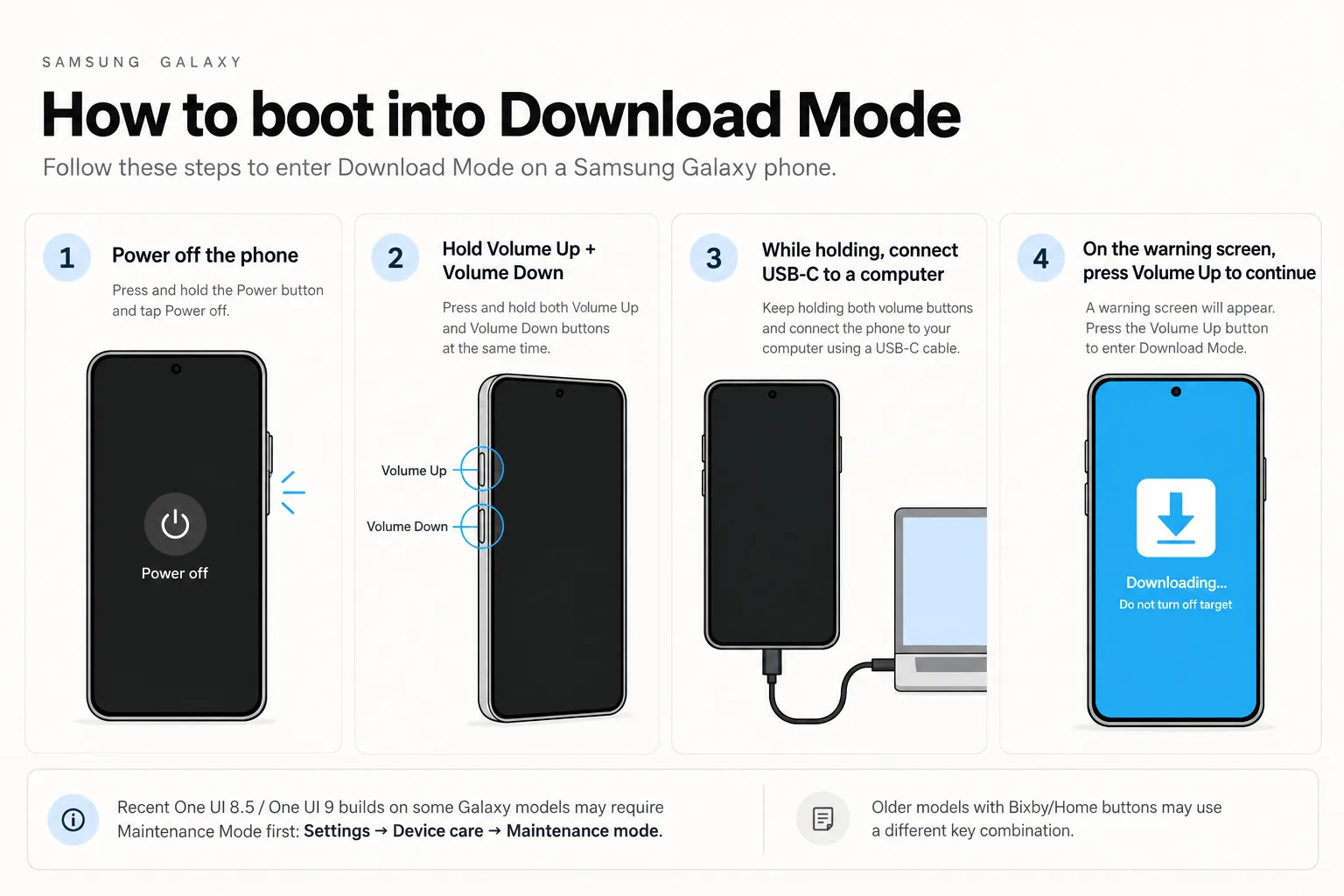
Odin can only see your phone when it is in Download Mode. The key combination depends on which buttons your device has.
Phones with only Volume and Side keys (Galaxy S20 and newer, Note 10 and newer, and most recent A series phones):
- Power off the phone completely.
- Press and hold Volume Up and Volume Down together.
- While holding both keys, connect the phone to your PC with the USB cable.
- Release the keys when the blue warning screen shows up, then press Volume Up to continue.
Phones with a Bixby key (Galaxy S8, S9, S10, Note 8, and Note 9): power off, then hold Volume Down, Bixby, and Power together. Release when the warning screen appears and press Volume Up.
Phones with a Home button (Galaxy S7 and older): power off, then hold Volume Down, Home, and Power together. Release when the warning screen appears and press Volume Up.
If your buttons are acting up, you can also run adb reboot download from your PC with USB debugging turned on. To get out of Download Mode later, hold Volume Down and the Side key for 7 to 10 seconds.
Want pictures for your exact phone, or seeing a D2 error on One UI 8.5? I wrote a full Download Mode guide for that.
How to use Odin to flash firmware
This is the exact process I follow. If it is your first time, read through all the steps once before you start.
- Download the Odin ZIP from above, check the SHA-256, and extract it to a folder on your desktop. Don’t run Odin from inside the ZIP.
- Extract your firmware too. The firmware ZIP contains files that start with BL, AP, CP, CSC, and HOME_CSC, so put all of them in one folder.
- Right-click the Odin3 exe file and choose Run as administrator.
- Boot your phone into Download Mode and connect it to the PC. When Odin detects it, the ID:COM box lights up and the Log tab shows “Added!!”. If that doesn’t happen, check the errors section below.
- Click BL, AP, CP, and CSC one by one and pick the matching file for each. The AP file is large, so Odin may freeze for a minute while it checks it. That’s normal.
- Choose between CSC and HOME_CSC. CSC wipes the phone, while HOME_CSC tries to keep your apps and data. If you are fixing a bootloop or selling the phone, go with CSC.
- Leave the Options tab alone. Auto Reboot and F. Reset Time should stay ticked. Don’t tick Re-Partition or Nand Erase unless a guide for your exact model tells you to.
- Click Start. Don’t touch the cable until the box turns green and says PASS. Your phone will reboot on its own, and the first boot can take a few minutes.
Want the longer version? The full Odin tutorial goes through each step in more detail.
What goes into each Odin slot?
Each file in a Samsung firmware package has its own job. The file name tells you which slot it belongs to.
| Slot | File name starts with | What it contains |
|---|---|---|
| BL | BL_ | The bootloader |
| AP | AP_ | The main system: Android, the kernel, recovery, and most of the firmware |
| CP | CP_ | The modem firmware for calls and mobile data. Wi-Fi-only tablets don’t have one. |
| CSC | CSC_ or HOME_CSC_ | Region and carrier settings. The full CSC also includes the partition layout. |
| USERDATA | USERDATA_ | Preloaded data. Most firmware packages don’t include it, so leave it empty. |
Never mix files from different firmware builds. All four files should come from the same package.
Common Odin errors and how to fix them
Odin doesn’t give you much to go on when something fails. These are the problems people run into most often.
Odin doesn’t detect the phone
If the ID:COM box stays empty, reinstall the Samsung USB Driver and restart your PC. Then try a different cable and a USB port on the back of the PC, not a hub. Also make sure Smart Switch isn’t running in the background.
Stuck at SetupConnection
This one is almost always a USB problem. Close Odin, swap the cable or port, boot the phone back into Download Mode, and try again.
SW REV CHECK FAIL
You are trying to flash firmware with an older bootloader revision than the one on your phone, and Samsung blocks that. Download a build with the same or a newer revision. The revision is the fifth character from the end of the build number.
FAIL! (Auth) or model mismatch
The firmware isn’t meant for your model, or you are flashing a modified file on a locked bootloader. Check the model number shown on the Download Mode screen and compare it with your firmware.
Thinking about a patched Odin to get past this? Read what patched Odin can and can’t fix before you download anything.
Complete(Write) operation failed
The connection dropped in the middle of the flash. Don’t panic. In most cases, the phone can still boot into Download Mode. Reconnect it with a good cable and flash the same firmware again.
Odin shows a lot more messages than these five. I listed the ones I could verify, with what each means, in my guide to Odin errors and fixes.
Can you use Odin on Mac or Linux?
Not directly. Odin3 only runs on Windows. If you don’t have a Windows PC around, you have two options.
Odin4 is a command-line version of Odin for Linux. It works with current Galaxy devices, but you’ll need to be comfortable with the terminal.
Heimdall is an open-source alternative that runs on macOS, Linux, and Windows. It is fine for older devices, but it hasn’t kept up, and many newer Galaxy models don’t work well with it.
I wouldn’t recommend running Odin inside a virtual machine. If the USB connection drops in the middle of a flash, you will have a much bigger problem on your hands.
I put the full walkthrough on one page: how to flash Samsung firmware from Mac and Linux.
Where to download Samsung firmware
Odin is only half the job. You also need the right firmware for your device, and these are the sources I use:
- SamUpdater is a tool I built to track Galaxy firmware releases by device and region. Use it to check which build is the latest for your model before you download anything.
- Frija is a Windows tool that downloads firmware straight from Samsung’s update servers.
- Bifrost does the same thing and runs on Windows, macOS, and Linux.
Once you have the files, my guide to what is inside Samsung firmware files explains what goes into each Odin slot.
Frequently asked questions
Is Odin an official Samsung tool?
Yes. Samsung made Odin for its own engineers and service centers. It was never released to the public, so every copy you find online, including the ones here, comes from files that have been shared over the years.
Is Odin free?
Yes. Odin is free, and so is every download on this site. There is no timer or sign-up.
Is it safe to use Odin?
A matching checksum tells you the download wasn’t damaged. It can’t prove a file came from Samsung, because Samsung never published Odin. That’s why I compared v3.14.4 with v3.14.1 and wrote up what I found on the latest Odin page. The bigger risk is flashing the wrong firmware or losing the connection in the middle of a flash, so follow the checklist above and scan every copy before you open it.
Will flashing with Odin void my warranty?
Flashing official Samsung firmware does not trip Knox. Flashing custom files such as TWRP or a Magisk-patched AP does, and that can’t be undone.
Will Odin delete my data?
Flashing with the CSC file wipes your phone. HOME_CSC usually keeps your apps and data, but I would still take a backup first.
Can I downgrade firmware with Odin?
Only to a build with the same or a newer bootloader revision. If the revision is older, Odin fails with SW REV CHECK FAIL.
Does Odin work on Windows 11?
Yes. Odin3 v3.14.1 and v3.14.4 both work on Windows 11 as long as the Samsung USB Driver is installed.
That’s everything you need to get started with Odin. Download the tool, get the right firmware, and don’t rush the steps. If you get stuck or run into an error that isn’t covered here, send me a message through the contact page. Include your model number, the Odin version, and the exact error from the Log tab, and I will try to help.